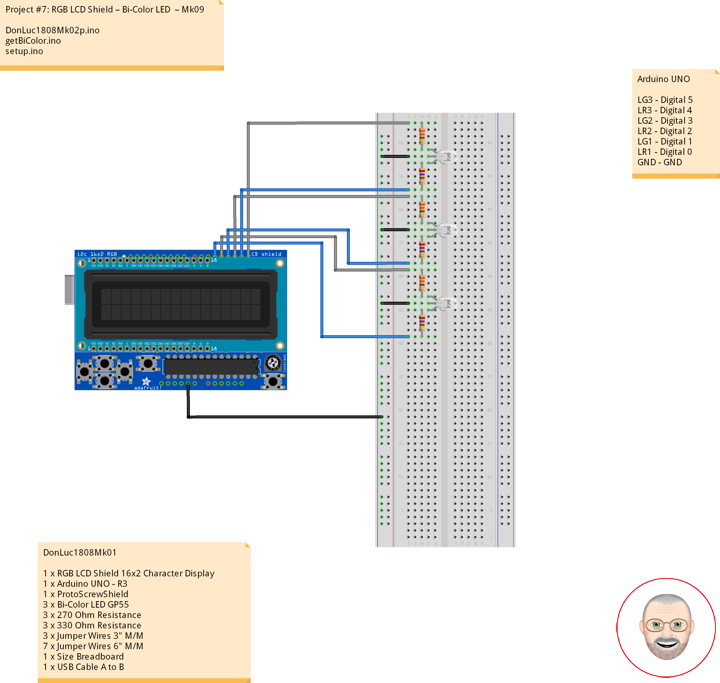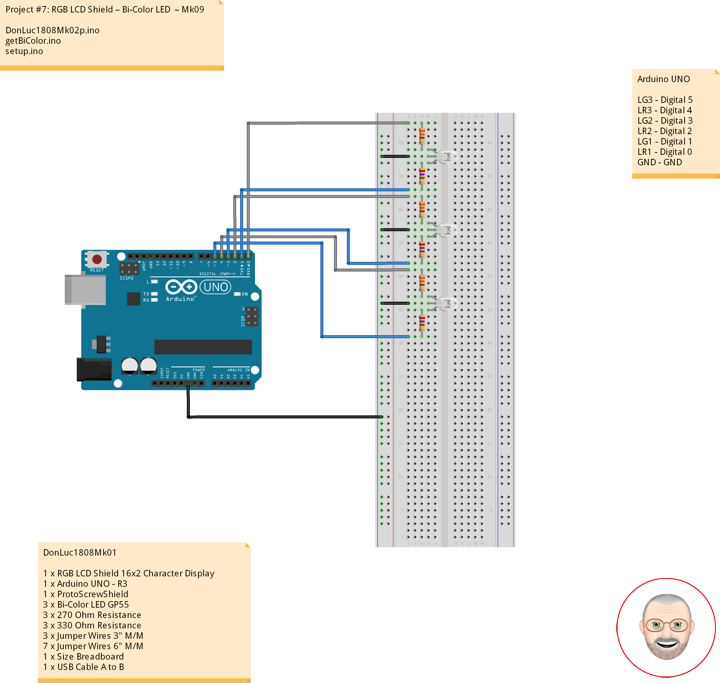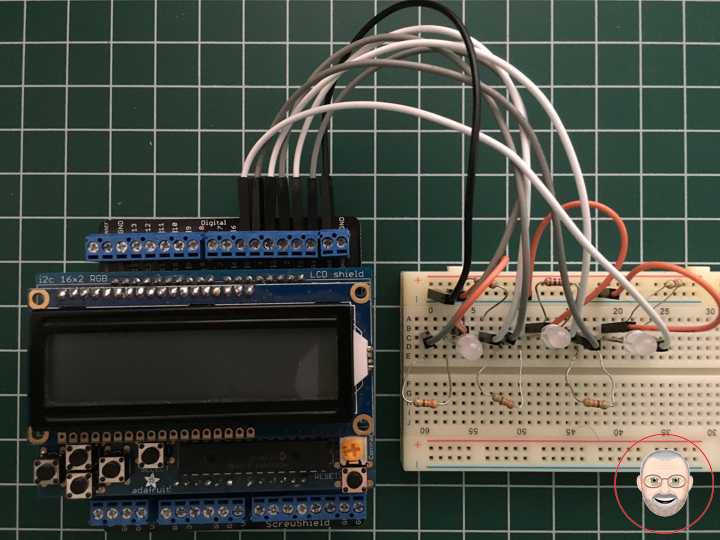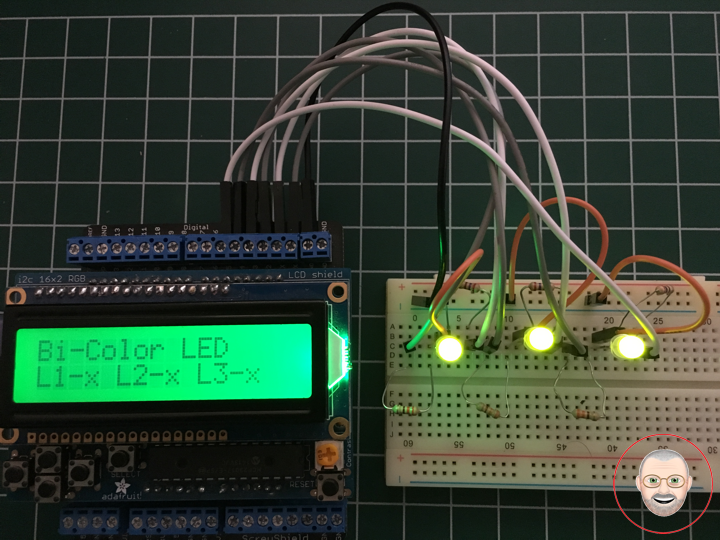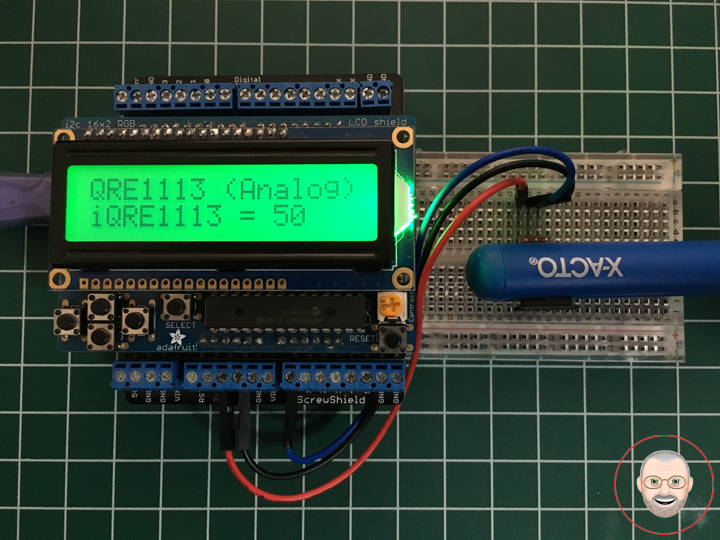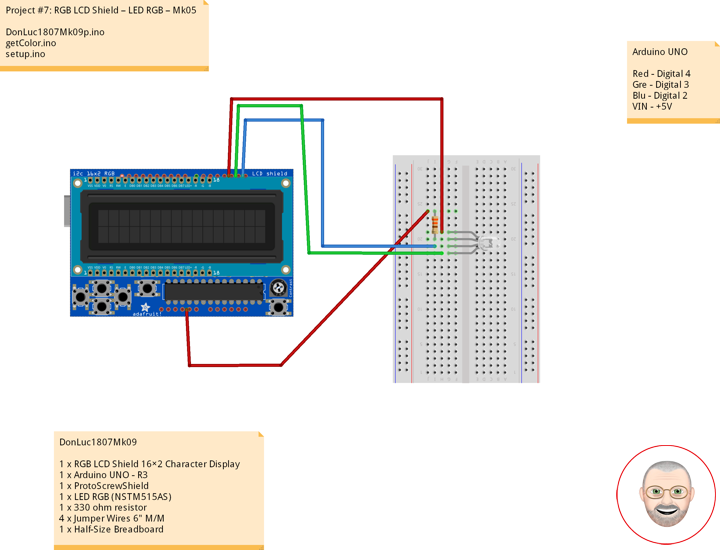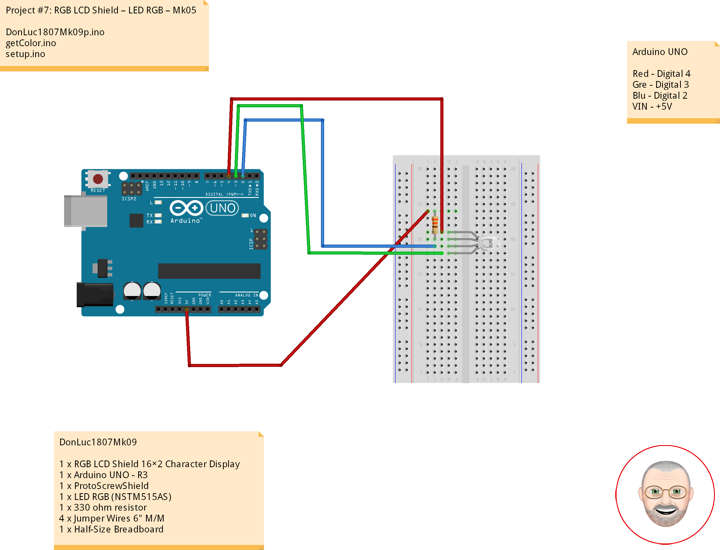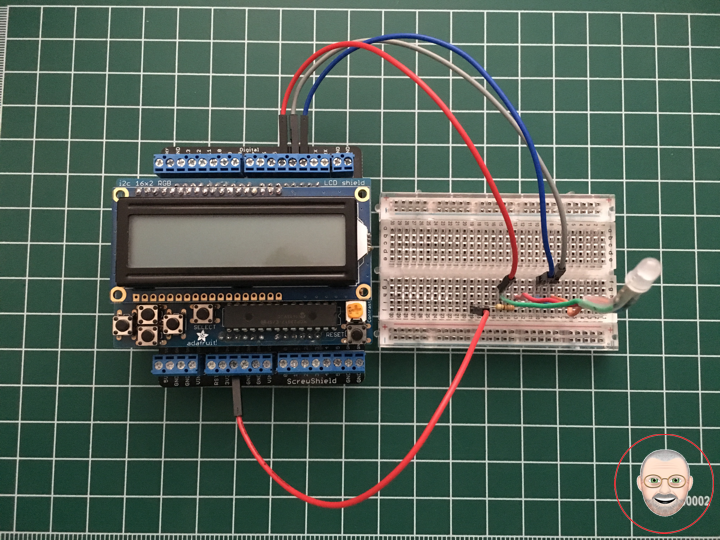
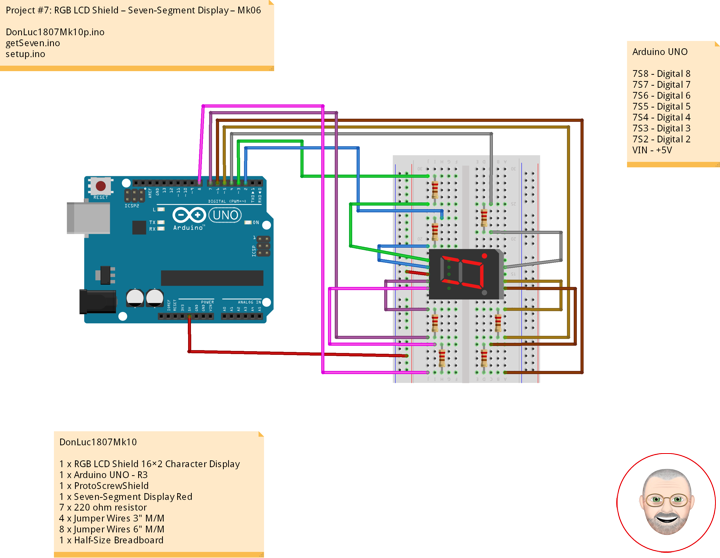
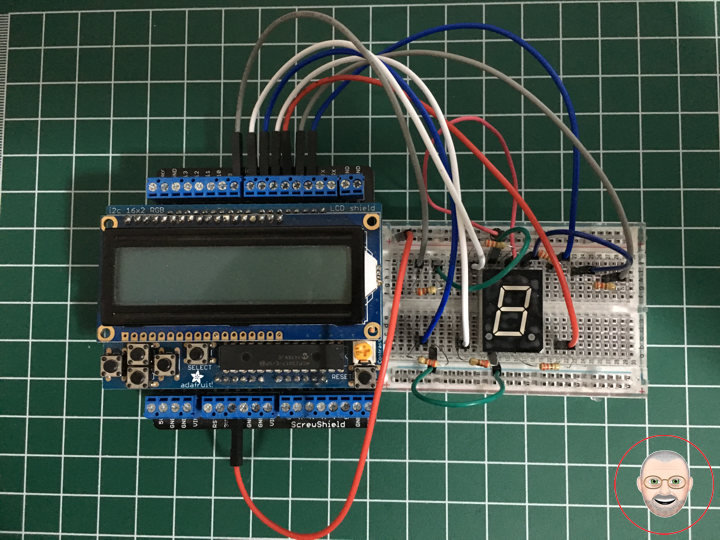
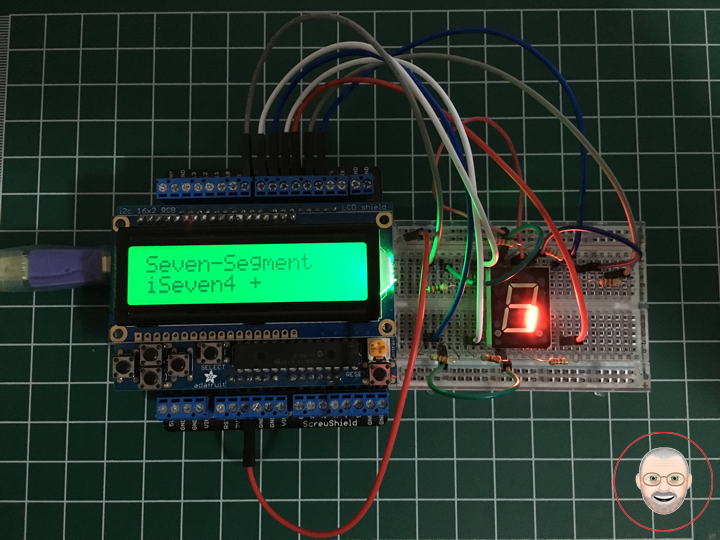
Project #7: RGB LCD Shield – Bi-Color LED – Mk09

Bi-Color LED

Bi-color LEDs contain two different LED emitters in one case. There are two types of these. One type consists of two dies connected to the same two leads antiparallel to each other. Current flow in one direction emits one color, and current in the opposite direction emits the other color. The other type consists of two dies with separate leads for both dies and another lead for common anode or cathode so that they can be controlled independently. The most common bi-color combination is red/traditional green, however, other available combinations include amber/traditional green, red/pure green, red/blue, and blue/pure green.

Super Bright BiPolar LEDs

Package of 12 super bright Red/Green jumbo T1 3/4 5mm LEDs. These have a diffused frosted lens and 3 long leads. Prime 100% perfect and bright. CODE 7: 100% Prime Parts. Stock # GP55

DonLuc1808Mk02

1 x RGB LCD Shield 16×2 Character Display
1 x Arduino UNO – R3
1 x ProtoScrewShield
3 x Bi-Color LED GP55
3 x 270 Ohm Resistance
3 x 330 Ohm Resistance
3 x Jumper Wires 3″ M/M
7 x Jumper Wires 6″ M/M
1 x Size Breadboard
1 x USB Cable A to B

Arduino UNO

LG3 – Digital 5
LR3 – Digital 4
LG2 – Digital 3
LR2 – Digital 2
LG1 – Digital 1
LR1 – Digital 0
GND – GND

DonLuc1808Mk02p.ino

// ***** Don Luc *****
// Software Version Information
// Project #7: RGB LCD Shield – Bi-Color LED  – Mk09
// 8-02
// DonLuc1808Mk02p 8-02
// RGB LCD Shield
// Bi-Color LED

// Include Library Code
#include <Adafruit_MCP23017.h>
#include <Adafruit_RGBLCDShield.h>

// RGB LCD Shield
Adafruit_RGBLCDShield RGBLCDShield = Adafruit_RGBLCDShield();
#define GREEN 0x2

// Bi-Color LED
int iLR1 = 0;      // LED Red 1
int iLG1 = 1;      // LED Green 1
int iLR2 = 2;      // LED Red 2
int iLG2 = 3;      // LED Green 2
int iLR3 = 4;      // LED Red 3
int iLG3 = 5;      // LED Green 3

void loop() 
{

  // Bi-Color LED
  isBiColor();

  delay(1000);
  
  // Clear
  RGBLCDShield.clear();
  
}

getBiColor.ino

// Bi-Color LED
void isBiColor()
{
   
  // Display
  // Set the cursor to column 0, line 0  
  RGBLCDShield.setCursor(0,0);
  RGBLCDShield.print("Bi-Color LED");         // Bi-Color LED

  // Bi-Color LED
   
  // Set the cursor to column 0, line 1
  RGBLCDShield.setCursor(0, 1); 
  RGBLCDShield.print("L1x- L2x- L3x-");      // Bi-Color LED Red

  digitalWrite(iLR1, HIGH);                  // LED Red 1
  digitalWrite(iLG1, LOW);                   // LED Green 1
  digitalWrite(iLR2, HIGH);                  // LED Red 2
  digitalWrite(iLG2, LOW);                   // LED Green 2
  digitalWrite(iLR3, HIGH);                  // LED Red 3
  digitalWrite(iLG3, LOW);                   // LED Green 3

  delay( 2000 );

  // Set the cursor to column 0, line 1
  RGBLCDShield.setCursor(0, 1); 
  RGBLCDShield.print("L1-x L2-x L3-x");      // Bi-Color LED Green

  digitalWrite(iLR1, LOW);                   // LED Red 1
  digitalWrite(iLG1, HIGH);                  // LED Green 1
  digitalWrite(iLR2, LOW);                   // LED Red 2
  digitalWrite(iLG2, HIGH);                  // LED Green 2  
  digitalWrite(iLR3, LOW);                   // LED Red 3
  digitalWrite(iLG3, HIGH);                  // LED Green 3

  delay( 2000 );

  // Set the cursor to column 0, line 1
  RGBLCDShield.setCursor(0, 1); 
  RGBLCDShield.print("L1xx L2xx L3xx");      // Bi-Color LED Red-Green

  digitalWrite(iLR1, HIGH);                  // LED Red 1
  digitalWrite(iLG1, HIGH);                  // LED Green 1
  digitalWrite(iLR2, HIGH);                  // LED Red 2
  digitalWrite(iLG2, HIGH);                  // LED Green 2  
  digitalWrite(iLR3, HIGH);                  // LED Red 3
  digitalWrite(iLG3, HIGH);                  // LED Green 3

  delay( 2000 ); 
  
}

setup.ino

// Setup
void setup() 
{

  // set up the LCD's number of columns and rows: 
  RGBLCDShield.begin(16, 2);
  RGBLCDShield.setBacklight(GREEN);
  
  // Display
  // Set the cursor to column 0, line 0  
  RGBLCDShield.setCursor(0,0);  
  RGBLCDShield.print("Don Luc");           // Don luc
  // Set the cursor to column 0, line 1
  RGBLCDShield.setCursor(0, 1);
  RGBLCDShield.print("Bi-Color LED");      // Bi-Color LED
  delay(5000);

  // Clear
  RGBLCDShield.clear();

  // Bi-Color LED
  pinMode(iLR1, OUTPUT);                   // LED Red 1
  pinMode(iLG1, OUTPUT);                   // LED Green 1
  pinMode(iLR2, OUTPUT);                   // LED Red 2
  pinMode(iLG2, OUTPUT);                   // LED Green 2
  pinMode(iLR3, OUTPUT);                   // LED Red 3
  pinMode(iLG3, OUTPUT);                   // LED Green 3
  
}

Don Luc

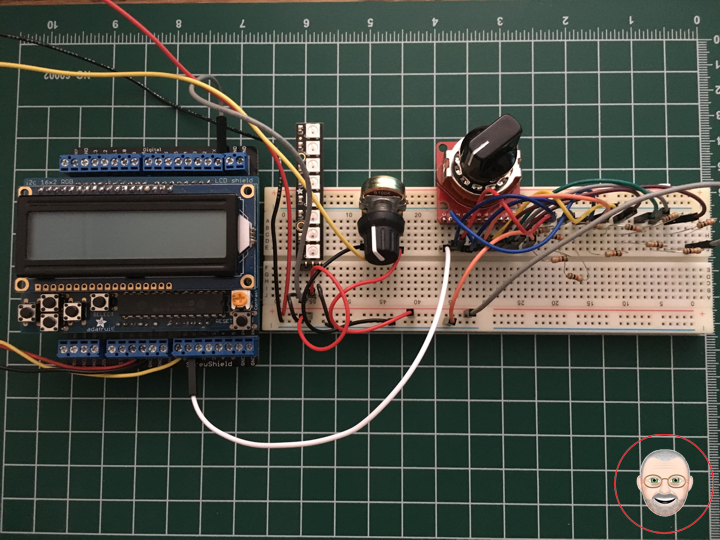
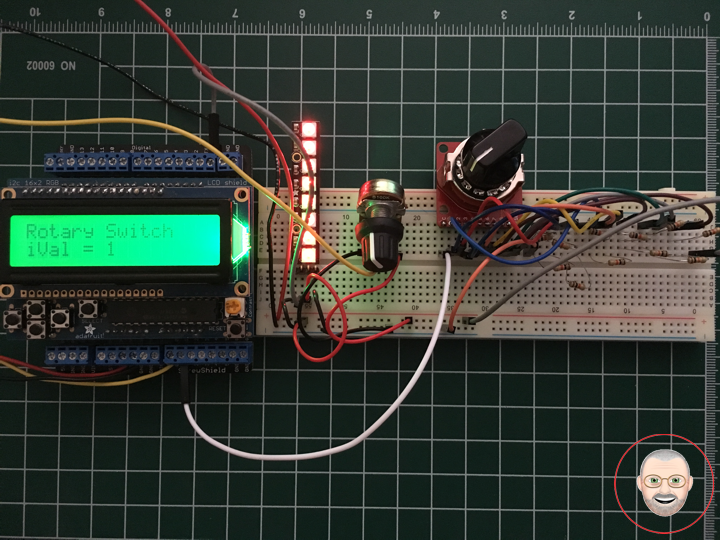
Project #7: RGB LCD Shield – Rotary Switch – Mk08

Rotary Switch – 10 Position

This is a single pole, 10 position rotary switch able to select up to 10 different states in a durable package. Unlike our other rotary switch, this model is much more robust and capable of handling larger currents and voltages.

With a max voltage rating of 125VAC at 0.3A and a dielectric strength of 250VAC for 1 minute this is a serious little rotary switch capable of working with some of your bigger projects. Though this switch requires you to use 11 pins and is not breadboard friendly we do offer a breakout board (found in the Recommended Products section below) to provide easier access to its capabilities.

1 x Rotary Switch – 10 Position
1 x Hex Nut
2 x Washer

Rating: 0.3A/125VAC
Contact Resistance: 50M Ohm max
Insulation Resistance: 100M Ohm @ 500VDC min
Dielectric Strength: 250VAC for 1 minute
Rotation torque: 1.0+0.5KG/cm
Shaft: 3/8″

Rotary Switch Breakout

This is the SparkFun Rotary Switch Breakout, a very simple board designed to easily provide you access to each pin on our 10-position rotary switches. This breakout allows you to easily add a rotary switch to your next project without having to worry about attaching its unique footprint to a custom board or solderless breadboard. All you need to do is solder the 10-position rotary switch into the breakout (using the silkscreen on the board as a guide) and each pin will become available for breadboard or hookup wire compatibility.

Each one of these boards breaks out the common ( C ), 1, 2, 3, 4, 5, 6, 7, 8, 9, and 10 positions on the board into 0.1″ spaced pins.

NeoPixel Stick – 8 x 5050 RGB LED

Make your own little LED strip arrangement with this stick of NeoPixel LEDs. We crammed 8 of the tiny 5050 (5mm x 5mm) smart RGB LEDs onto a PCB with mounting holes and a chainable design. Use only one microcontroller pin to control as many as you can chain together! Each LED is addressable as the driver chip is inside the LED. Each one has ~18mA constant current drive so the color will be very consistent even if the voltage varies, and no external choke resistors are required making the design slim. Power the whole thing with 5VDC (4-7V works) and you’re ready to rock.

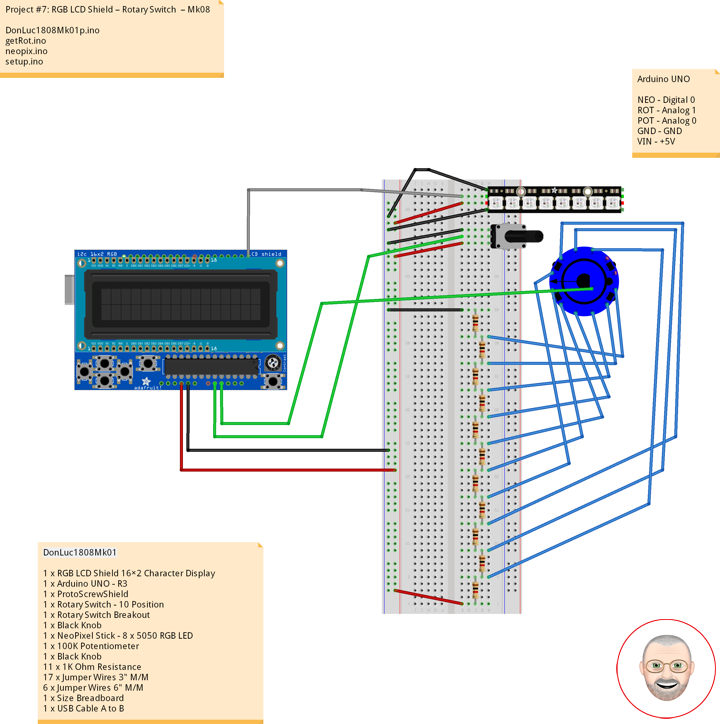
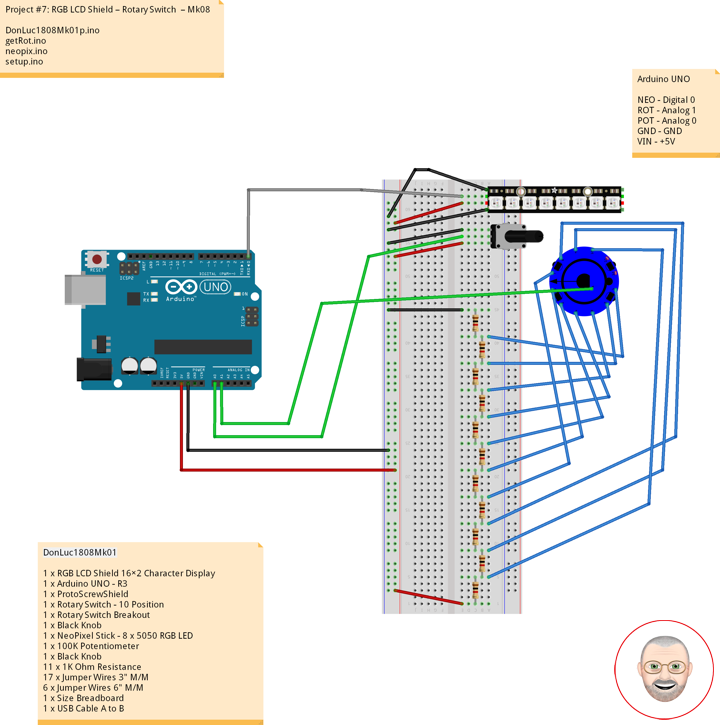
DonLuc1808Mk01

1 x RGB LCD Shield 16×2 Character Display
1 x Arduino UNO – R3
1 x ProtoScrewShield
1 x Rotary Switch – 10 Position
1 x Rotary Switch Breakout
1 x Black Knob
1 x NeoPixel Stick – 8 x 5050 RGB LED
1 x 100K Potentiometer
1 x Black Knob
11 x 1K Ohm Resistance
17 x Jumper Wires 3″ M/M
6 x Jumper Wires 6″ M/M
1 x Size Breadboard
1 x USB Cable A to B

Arduino UNO

NEO – Digital 0
ROT – Analog 1
POT – Analog 0
GND – GND
VIN – +5V

DonLuc1808Mk01p.ino

// ***** Don Luc *****
// Software Version Information
// Project #7: RGB LCD Shield – Rotary Switch – Mk08
// 8-01
// DonLuc1808Mk01p 8-01
// RGB LCD Shield
// Rotary Switch

// Include Library Code
#include <Adafruit_MCP23017.h>
#include <Adafruit_RGBLCDShield.h>
#include <Adafruit_NeoPixel.h>

// RGB LCD Shield
Adafruit_RGBLCDShield RGBLCDShield = Adafruit_RGBLCDShield();
#define GREEN 0x2

// NeoPixels
#define PIN 0                             // On digital pin 3
#define NUMPIXELS 8                       // NeoPixels NUMPIXELS = 8
Adafruit_NeoPixel pixels = Adafruit_NeoPixel(NUMPIXELS, PIN, NEO_GRB + NEO_KHZ800);
int red = 0;                              // Red
int green = 0;                            // Green
int blue = 0;                             // Blue
int iNeo = 0;                             // Neopix
const int iBriPin = A0;                   // Panel Mount 1K potentiometer Brightneed
int iBri = 0;                             // Neopix Brightness
int iBriMin = 1023;                       // Brightneed minimum sensor value
int iBriMax = 0;                          // Brightneed maximun sensor value

// Rotary Switch
// Rotary Switch - 10 Position
// Number = 1 => 10
int iRotNum = A1;                         // Rotary Switch
int iVal = 0;                             // iVal - Value            
int z = 0;                                // Number

void loop() 
{

  // Rotary Switch
  isRot();

  delay(1000);
  
  // Clear
  RGBLCDShield.clear();
  
}

getRot.ino

// Rotary Switch
void isRot()
{

  // NeoPixels
  for(int y=0; y < NUMPIXELS; y++)
  { 
     // Black
     red = 0;                                 // Red
     green = 0;                               // Green
     blue = 0;                                // Blue
     iNeo = y;                                // Neopix  
     neopix();    
  }
   
  // Display
  // Set the cursor to column 0, line 0  
  RGBLCDShield.setCursor(0,0);
  RGBLCDShield.print("Rotary Switch");        // Rotary Switch

  // Rotary Switch
  z = analogRead( iRotNum );                  // Rotary Switch
  iVal = ( z / 100 );                         // Rotary Value
   
  // Set the cursor to column 0, line 1
  RGBLCDShield.setCursor(0, 1); 
  RGBLCDShield.print("iVal = ");              // Rotary Value
  RGBLCDShield.print( iVal + 1 );

  // Range Value
  switch ( iVal ) {
    case  0:
      // Red
      // NeoPixels
      for(int y=0; y<NUMPIXELS; y++){ 
         red = 255;                           // Red
         green = 0;                           // Green
         blue = 0;                            // Blue
         iNeo = y;                            // Neopix      
         neopix(); 
      }        
      break;
    case 1:
      // Green
      // NeoPixels
      for(int y=0; y<NUMPIXELS; y++){ 
         red = 0;                             // Red
         green = 255;                         // Green
         blue = 0;                            // Blue
         iNeo = y;                            // Neopix      
         neopix(); 
      }
      break;
    case 2:
      // Blue
      // NeoPixels
      for(int y=0; y<NUMPIXELS; y++){ 
         red = 0;                             // Red
         green = 0;                           // Green
         blue = 255;                          // Blue
         iNeo = y;                            // Neopix      
         neopix(); 
      }
      break;
    case 3:
      // White
      // NeoPixels
      for(int y=0; y<NUMPIXELS; y++){ 
         red = 255;                           // Red
         green = 255;                         // Green
         blue = 255;                          // Blue
         iNeo = y;                            // Neopix      
         neopix(); 
      }
      break;  
    case 4:
      // NeoPixels
      // Red
      for(int y=0; y<NUMPIXELS; y++){ 
         red = 255;                           // Red
         green = 0;                           // Green
         blue = 0;                            // Blue
         iNeo = y;                            // Neopix      
         neopix(); 
      }
      delay( 2000 );
      // Green
      for(int y=0; y<NUMPIXELS; y++){ 
         red = 0;                             // Red
         green = 255;                         // Green
         blue = 0;                            // Blue
         iNeo = y;                            // Neopix      
         neopix(); 
      }
      delay( 2000 );
      // Blue
      for(int y=0; y<NUMPIXELS; y++){ 
         red = 0;                             // Red
         green = 0;                           // Green
         blue = 255;                          // Blue
         iNeo = y;                            // Neopix      
         neopix(); 
      }          
      break;
    case 5:
      // NeoPixels
      // Yellow
      for(int y=0; y<NUMPIXELS; y++){ 
         red = 255;                           // Red
         green = 255;                         // Green
         blue = 0;                            // Blue
         iNeo = y;                            // Neopix      
         neopix(); 
      } 
      break;
    case 6:
      // NeoPixels
      // Orange
      for(int y=0; y<NUMPIXELS; y++){ 
         red = 255;                           // Red
         green = 102;                         // Green
         blue = 0;                            // Blue
         iNeo = y;                            // Neopix      
         neopix(); 
      }
      break;       
    case 7:
      // NeoPixels
      // Violet
      for(int y=0; y<NUMPIXELS; y++){ 
         red = 204;                           // Red
         green = 102;                         // Green
         blue = 204;                          // Blue
         iNeo = y;                            // Neopix      
         neopix(); 
      }
      break; 
    case 8:
      // NeoPixels
      // Red
      red = 255;                           // Red
      green = 0;                           // Green
      blue = 0;                            // Blue
      iNeo = 0;                            // Neopix      
      neopix();
      delay( 1000 );
      // Green
      red = 0;                             // Red
      green = 255;                         // Green
      blue = 0;                            // Blue
      iNeo = 1;                            // Neopix      
      neopix();
      delay( 1000 ); 
      // Blue
      red = 0;                             // Red
      green = 0;                           // Green
      blue = 255;                          // Blue
      iNeo = 2;                            // Neopix      
      neopix();
      delay( 1000 );
      // White
      red = 255;                           // Red
      green = 255;                         // Green
      blue = 255;                          // Blue
      iNeo = 3;                            // Neopix      
      neopix();
      delay( 1000 );
      // Pink
      red = 255;                           // Red
      green = 153;                         // Green
      blue = 203;                          // Blue
      iNeo = 4;                            // Neopix      
      neopix();
      delay( 1000 );
      // Orange
      red = 255;                           // Red
      green = 102;                         // Green
      blue = 0;                            // Blue
      iNeo = 5;                            // Neopix      
      neopix();
      delay( 1000 ); 
      // Violet
      red = 204;                           // Red
      green = 102;                         // Green
      blue = 204;                          // Blue
      iNeo = 6;                            // Neopix      
      neopix();
      delay( 1000 ); 
      // Yellow
      red = 255;                           // Red
      green = 255;                         // Green
      blue = 0;                            // Blue
      iNeo = 7;                            // Neopix      
      neopix();
      delay( 1000 );         
      break; 
    case 9:
      // NeoPixels
      // Red
      red = 255;                           // Red
      green = 0;                           // Green
      blue = 0;                            // Blue
      iNeo = 7;                            // Neopix      
      neopix();
      delay( 1000 );
      // Green
      red = 0;                             // Red
      green = 255;                         // Green
      blue = 0;                            // Blue
      iNeo = 6;                            // Neopix      
      neopix();
      delay( 1000 ); 
      // Blue
      red = 0;                             // Red
      green = 0;                           // Green
      blue = 255;                          // Blue
      iNeo = 5;                            // Neopix      
      neopix();
      delay( 1000 );
      // White
      red = 255;                           // Red
      green = 255;                         // Green
      blue = 255;                          // Blue
      iNeo = 4;                            // Neopix      
      neopix();
      delay( 1000 );
      // Pink
      red = 255;                           // Red
      green = 153;                         // Green
      blue = 203;                          // Blue
      iNeo = 3;                            // Neopix      
      neopix();
      delay( 1000 );
      // Orange
      red = 255;                           // Red
      green = 102;                         // Green
      blue = 0;                            // Blue
      iNeo = 2;                            // Neopix      
      neopix();
      delay( 1000 ); 
      // Violet
      red = 204;                           // Red
      green = 102;                         // Green
      blue = 204;                          // Blue
      iNeo = 1;                            // Neopix      
      neopix();
      delay( 1000 ); 
      // Yellow
      red = 255;                           // Red
      green = 255;                         // Green
      blue = 0;                            // Blue
      iNeo = 0;                            // Neopix      
      neopix();
      delay( 1000 );
      break;
  }

}

neopix.ino

// NeoPixels
void neopix() { 
    
    // Brightness
    iBri = analogRead(iBriPin);

    // iBri apply the calibration to the sensor reading
    iBri = map(iBri, iBriMin, iBriMax, 0, 255);

    // iBri in case the sensor value is outside the range seen during calibration
    iBri = constrain(iBri, 0, 255);
    
    pixels.setBrightness( iBri );
    // Pixels.Color takes RGB values, from 0,0,0 up to 255,255,255
    pixels.setPixelColor( iNeo, pixels.Color(red,green,blue) ); 
    // This sends the updated pixel color to the hardware
    pixels.show(); 
    // Delay for a period of time (in milliseconds)
    delay(50);     
  
}

setup.ino

// Setup
void setup() 
{

  // set up the LCD's number of columns and rows: 
  RGBLCDShield.begin(16, 2);
  RGBLCDShield.setBacklight(GREEN);
  
  // Display
  // Set the cursor to column 0, line 0  
  RGBLCDShield.setCursor(0,0);  
  RGBLCDShield.print("Don Luc");           // Don luc
  // Set the cursor to column 0, line 1
  RGBLCDShield.setCursor(0, 1);
  RGBLCDShield.print("Rotary Switch");     // Rotary Switch
  delay(5000);

  // Clear
  RGBLCDShield.clear();

  // NeoPixels
  pixels.begin();          // This initializes the NeoPixel library
  // NeoPixels
  
  for(int y=0; y < NUMPIXELS; y++)
  { 
     // Black
     red = 0;                                 // Red
     green = 0;                               // Green
     blue = 0;                                // Blue
     iNeo = y;                                // Neopix  
     neopix();    
  }

}

Don Luc

Project #7: RGB LCD Shield – Line Sensor Breakout – Mk07

Line Sensor Breakout – QRE1113 (Analog)

Description

This version of the QRE1113 breakout board features an easy-to-use analog output, which will vary depending on the amount of IR light reflected back to the sensor. This tiny board is perfect for line sensing applications and can be used in both 3.3V and 5V systems.

The board’s QRE1113 IR reflectance sensor is comprised of two parts – an IR emitting LED and an IR sensitive phototransistor. When you apply power to the VCC and GND pins the IR LED inside the sensor will illuminate. A 100 Ohm resistor is on-board and placed in series with the LED to limit current. A 10k Ohm resistor pulls the output pin high, but when the light from the LED is reflected back onto the phototransistor the output will begin to go lower. The more IR light sensed by the phototransistor, the lower the output voltage of the breakout board.

These sensors are widely used in line following robots – white surfaces reflect much more light than black, so, when directed towards a white surface, the voltage output will be lower than that on a black surface.

The power input and analog output pins are brought out to a 3-pin, 0.1″ pitch header. The board also has a single mounting hole if you want to screw the board onto something.

Features

* 5VDC operating voltage
* 25mA supply current
* Optimal sensing distance: 0.125″ (3mm)
* 0.30 x 0.55 “ (7.62 x 13.97 mm)

Common Reflectance Sensor

The QRE1113 is a common reflectance sensor often used in robotic line followers. The sensor works by shining an IR LED down and seeing how much of that light bounces back using a phototransistor. Because dark colors will bounce back less of the light, the sensor can be used to tell the difference between white and black areas. So an array of these can be used to help a robot determine where a dark line is on the ground so it can follow it. But they can also be used to determine proximity under an inch.

The an analog input on your microcontroller but still need an analog reading of how much light was reflected. It does this by allowing you to charge a capacitor on the board, and then timing how long it takes to discharge. The more light that is reflected, the less time it takes to discharge the capacitor. Hooking the QRE1113 to your Arduino is very simple. It just needs power (5V), ground, and an analog pin.

DonLuc1807Mk11

1 x RGB LCD Shield 16×2 Character Display
1 x Arduino UNO – R3
1 x ProtoScrewShield
1 x Line Sensor Breakout – QRE1113 (Analog)
3 x Jumper Wires 6″ M/M
1 x Half-Size Breadboard

Arduino UNO

CRS – Analog 0
GND – GND
VIN – +5V

DonLuc1807Mk11p.ino

// ***** Don Luc *****
// Software Version Information
// Project #7: RGB LCD Shield – Line Sensor Breakout – Mk07
// 7-11
// DonLuc1807Mk10p 7-11
// RGB LCD Shield
// QRE1113 (Analog)

// include the library code:
#include <Adafruit_MCP23017.h>
#include <Adafruit_RGBLCDShield.h>

Adafruit_RGBLCDShield RGBLCDShield = Adafruit_RGBLCDShield();
#define GREEN 0x2

// Seven-Segment Display
int iQRE1113 = A0;       // iQRE1113
int iQRE1113Value = 0;   // iQRE1113Value

void loop() 
{

  // QRE1113 (Analog)
  isCRS();

  delay(2000);
  
  // Clear
  RGBLCDShield.clear();
  
}

getSeven.ino

// Line Sensor Breakout - QRE1113
void isCRS()
{

  // Display
  // Set the cursor to column 0, line 0  
  RGBLCDShield.setCursor(0,0);
  RGBLCDShield.print("QRE1113 (Analog)");       // Line Sensor Breakout - QRE1113

  iQRE1113Value = analogRead(iQRE1113);
  
  // Set the cursor to column 0, line 1
  RGBLCDShield.setCursor(0, 1); 
  RGBLCDShield.print("iQRE1113 = ");            // iQRE1113
  RGBLCDShield.print( iQRE1113Value );          // iQRE1113Value

}

setup.ino

// Setup
void setup() 
{

  // set up the LCD's number of columns and rows: 
  RGBLCDShield.begin(16, 2);
  RGBLCDShield.setBacklight(GREEN);
  
  // Display
  // Set the cursor to column 0, line 0  
  RGBLCDShield.setCursor(0,0);  
  RGBLCDShield.print("Don Luc");           // Don luc
  // Set the cursor to column 0, line 1
  RGBLCDShield.setCursor(0, 1);
  RGBLCDShield.print("QRE1113 (Analog)");  // Seven-Segment Display
  delay(5000);

  // Clear
  RGBLCDShield.clear();
 
}

Don Luc

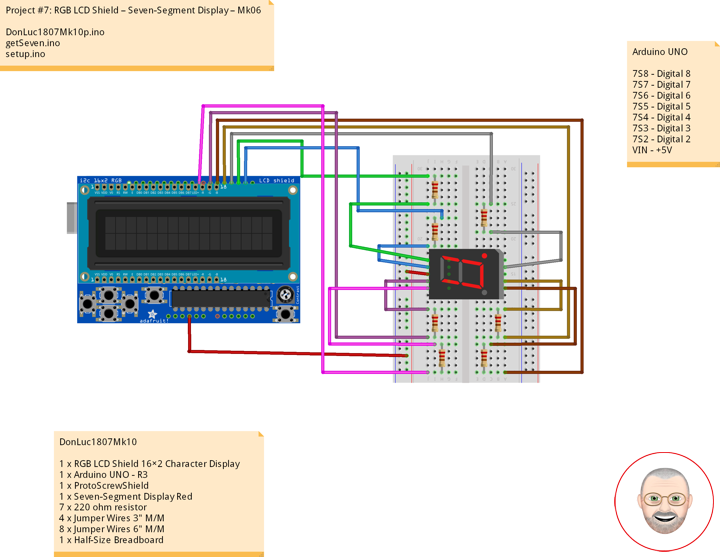
Project #7: RGB LCD Shield – Seven-Segment Display – Mk06

Seven-Segment Display

A seven-segment display (SSD), or seven-segment indicator, is a form of electronic display device for displaying decimal numerals that is an alternative to the more complex dot matrix displays.

Seven-segment displays are widely used in digital clocks, electronic meters, basic calculators, and other electronic devices that display numerical information.

Your basic 7-segment LED. Common anode. Two decimal points, but only the one on the right is wired. Digit height is 0.6″. Overall height is 1″.

Common Cathode

In a common-cathode display, the positive terminal of all the eight LEDs are connected together and then connected to iSeven2 and iSeven8. To turn on an individual segment, you ground one of the pins. The following diagram shows the internal structure of the common-cathode seven-segment display.

The internal structure of both types is nearly the same. The difference is the polarity of the LEDs and common terminal. In a common cathode seven-segment display, all seven LEDs plus a dot LED have the cathodes connected To use this display, we need to connect VIN to make the individual segments light up. The following diagram shows the internal structure of common-cathode seven-segment display.

If your Arduino application only needs to display numbers, consider using a seven-segment display. The severn-segment display has seven LEDs arranged in the shape of number eight. They are easy to use and cost effective. The picture below shows a typical seven-segment display.

DonLuc1807Mk10

1 x RGB LCD Shield 16×2 Character Display
1 x Arduino UNO – R3
1 x ProtoScrewShield
1 x Seven-Segment Display Red
7 x 220 ohm resistor
4 x Jumper Wires 3″ M/M
8 x Jumper Wires 6″ M/M
1 x Half-Size Breadboard

Arduino UNO

7S8 – Digital 8
7S7 – Digital 7
7S6 – Digital 6
7S5 – Digital 5
7S4 – Digital 4
7S3 – Digital 3
7S2 – Digital 2
VIN – +5V

DonLuc1807Mk10p.ino

// ***** Don Luc *****
// Software Version Information
// Project #7: RGB LCD Shield – Seven-Segment Display – Mk06
// 7-10
// DonLuc1807Mk10p 7-10
// RGB LCD Shield
// Seven-Segment Display

// include the library code:
#include <Adafruit_MCP23017.h>
#include <Adafruit_RGBLCDShield.h>

Adafruit_RGBLCDShield RGBLCDShield = Adafruit_RGBLCDShield();
#define GREEN 0x2

// Seven-Segment Display
int iSeven2 = 2;     // iSeven2
int iSeven3 = 3;     // iSeven3
int iSeven4 = 4;     // iSeven4
int iSeven5 = 5;     // iSeven5
int iSeven6 = 6;     // iSeven6
int iSeven7 = 7;     // iSeven7
int iSeven8 = 8;     // iSeven8

void loop() 
{

  // Seven-Segment Display
  isSeven();
  
  // Clear
  RGBLCDShield.clear();
  
}

getSeven.ino

// Seven-Segment Display
void isSeven()
{

  // Display
  // Set the cursor to column 0, line 0  
  RGBLCDShield.setCursor(0,0);
  RGBLCDShield.print("Seven-Segment");          // Seven-Segment Display
  
  // Set the cursor to column 0, line 1
  RGBLCDShield.setCursor(0, 1); 
  RGBLCDShield.print("iSeven2 +    ");          // iSeven2 +
  digitalWrite(iSeven2, LOW);
  
  delay(5000);

  // Seven - Off
  isSevOff();

  // Set the cursor to column 0, line 1
  RGBLCDShield.setCursor(0, 1);
  RGBLCDShield.print("iSeven2 -      ");        // iSeven2 -

  delay(2000);

  // Set the cursor to column 0, line 1
  RGBLCDShield.setCursor(0, 1); 
  RGBLCDShield.print("iSeven3 +    ");          // iSeven3 +
  digitalWrite(iSeven3, LOW);
  
  delay(5000);

  // Seven - Off
  isSevOff();
  
  // Set the cursor to column 0, line 1
  RGBLCDShield.setCursor(0, 1);
  RGBLCDShield.print("iSeven3 -      ");        // iSeven3 -

  delay(2000);
  
  // Set the cursor to column 0, line 1
  RGBLCDShield.setCursor(0, 1); 
  RGBLCDShield.print("iSeven4 +   ");           // iSeven4 +
  digitalWrite(iSeven4, LOW);
  
  delay(5000);

  // Seven - Off
  isSevOff();
  
  // Set the cursor to column 0, line 1
  RGBLCDShield.setCursor(0, 1);
  RGBLCDShield.print("iSeven4 -      ");        // iSeven4 -

  delay(2000);

  // Set the cursor to column 0, line 1
  RGBLCDShield.setCursor(0, 1); 
  RGBLCDShield.print("iSeven5 +   ");           // iSeven5 +
  digitalWrite(iSeven5, LOW);
  
  delay(5000);

  // Seven - Off
  isSevOff();
  
  // Set the cursor to column 0, line 1
  RGBLCDShield.setCursor(0, 1);
  RGBLCDShield.print("iSeven5 -      ");        // iSeven5 -  

  delay(2000);

  // Set the cursor to column 0, line 1
  RGBLCDShield.setCursor(0, 1); 
  RGBLCDShield.print("iSeven6 +   ");           // iSeven6 +
  digitalWrite(iSeven6, LOW);
  
  delay(5000);

  // Seven - Off
  isSevOff();
  
  // Set the cursor to column 0, line 1
  RGBLCDShield.setCursor(0, 1);
  RGBLCDShield.print("iSeven6 -      ");        // iSeven6 -

  delay(2000);

  // Set the cursor to column 0, line 1
  RGBLCDShield.setCursor(0, 1); 
  RGBLCDShield.print("iSeven7 +   ");           // iSeven7 +
  digitalWrite(iSeven7, LOW);
  
  delay(5000);

  // Seven - Off
  isSevOff();
  
  // Set the cursor to column 0, line 1
  RGBLCDShield.setCursor(0, 1);
  RGBLCDShield.print("iSeven7 -      ");        // iSeven7 -

  delay(2000);
  
  // Set the cursor to column 0, line 1
  RGBLCDShield.setCursor(0, 1); 
  RGBLCDShield.print("iSeven8 +   ");           // iSeven8 +
  digitalWrite(iSeven8, LOW);
  
  delay(5000);

  // Seven - Off
  isSevOff();
  
  // Set the cursor to column 0, line 1
  RGBLCDShield.setCursor(0, 1);
  RGBLCDShield.print("iSeven8 -      ");        // iSeven8 -

  delay(2000);

  // Set the cursor to column 0, line 1
  RGBLCDShield.setCursor(0, 1); 
  RGBLCDShield.print("iSeven 0    ");           // iSeven 0
  digitalWrite(iSeven2, LOW);
  digitalWrite(iSeven3, LOW);
  digitalWrite(iSeven4, LOW);
  digitalWrite(iSeven5, LOW);  
  digitalWrite(iSeven6, LOW);
  digitalWrite(iSeven7, LOW);
  
  delay(5000);

  // Seven - Off
  isSevOff();
  
  // Set the cursor to column 0, line 1
  RGBLCDShield.setCursor(0, 1);
  RGBLCDShield.print("Seven - Off    ");        // Seven - Off

  delay(2000);

  // Set the cursor to column 0, line 1
  RGBLCDShield.setCursor(0, 1); 
  RGBLCDShield.print("iSeven 1    ");           // iSeven 1
  digitalWrite(iSeven3, LOW);
  digitalWrite(iSeven4, LOW);
  
  delay(5000);

  // Seven - Off
  isSevOff();
  
  // Set the cursor to column 0, line 1
  RGBLCDShield.setCursor(0, 1);
  RGBLCDShield.print("Seven - Off    ");        // Seven - Off

  delay(2000);

  // Set the cursor to column 0, line 1
  RGBLCDShield.setCursor(0, 1); 
  RGBLCDShield.print("iSeven 2    ");           // iSeven 2
  digitalWrite(iSeven2, LOW);
  digitalWrite(iSeven3, LOW);
  digitalWrite(iSeven5, LOW);  
  digitalWrite(iSeven6, LOW);
  digitalWrite(iSeven8, LOW);
  
  delay(5000);

  // Seven - Off
  isSevOff();
  
  // Set the cursor to column 0, line 1
  RGBLCDShield.setCursor(0, 1);
  RGBLCDShield.print("Seven - Off    ");        // Seven - Off

  delay(2000);

  // Set the cursor to column 0, line 1
  RGBLCDShield.setCursor(0, 1); 
  RGBLCDShield.print("iSeven 3    ");           // iSeven 3
  digitalWrite(iSeven2, LOW);
  digitalWrite(iSeven3, LOW);
  digitalWrite(iSeven4, LOW);
  digitalWrite(iSeven5, LOW);  
  digitalWrite(iSeven8, LOW);
  
  delay(5000);

  // Seven - Off
  isSevOff();
  
  // Set the cursor to column 0, line 1
  RGBLCDShield.setCursor(0, 1);
  RGBLCDShield.print("Seven - Off    ");        // Seven - Off

  delay(2000);

  // Set the cursor to column 0, line 1
  RGBLCDShield.setCursor(0, 1); 
  RGBLCDShield.print("iSeven 4    ");           // iSeven 4
  digitalWrite(iSeven3, LOW);
  digitalWrite(iSeven4, LOW);
  digitalWrite(iSeven7, LOW);
  digitalWrite(iSeven8, LOW);
  
  delay(5000);

  // Seven - Off
  isSevOff();
  
  // Set the cursor to column 0, line 1
  RGBLCDShield.setCursor(0, 1);
  RGBLCDShield.print("Seven - Off    ");        // Seven - Off

  delay(2000);

  // Set the cursor to column 0, line 1
  RGBLCDShield.setCursor(0, 1); 
  RGBLCDShield.print("iSeven 5    ");           // iSeven 5
  digitalWrite(iSeven2, LOW);
  digitalWrite(iSeven4, LOW);
  digitalWrite(iSeven5, LOW);  
  digitalWrite(iSeven7, LOW);
  digitalWrite(iSeven8, LOW);
  
  delay(5000);

  // Seven - Off
  isSevOff();
  
  // Set the cursor to column 0, line 1
  RGBLCDShield.setCursor(0, 1);
  RGBLCDShield.print("Seven - Off    ");        // Seven - Off

  delay(2000);

  // Set the cursor to column 0, line 1
  RGBLCDShield.setCursor(0, 1); 
  RGBLCDShield.print("iSeven 6    ");           // iSeven 6
  digitalWrite(iSeven2, LOW);
  digitalWrite(iSeven4, LOW);
  digitalWrite(iSeven5, LOW);  
  digitalWrite(iSeven6, LOW);
  digitalWrite(iSeven7, LOW);
  digitalWrite(iSeven8, LOW);
  
  delay(5000);

  // Seven - Off
  isSevOff();
  
  // Set the cursor to column 0, line 1
  RGBLCDShield.setCursor(0, 1);
  RGBLCDShield.print("Seven - Off    ");        // Seven - Off

  delay(2000);

  // Set the cursor to column 0, line 1
  RGBLCDShield.setCursor(0, 1); 
  RGBLCDShield.print("iSeven 7    ");           // iSeven 7
  digitalWrite(iSeven2, LOW);
  digitalWrite(iSeven3, LOW);
  digitalWrite(iSeven4, LOW);
  
  delay(5000);

  // Seven - Off
  isSevOff();
  
  // Set the cursor to column 0, line 1
  RGBLCDShield.setCursor(0, 1);
  RGBLCDShield.print("Seven - Off    ");        // Seven - Off

  delay(2000);

  // Set the cursor to column 0, line 1
  RGBLCDShield.setCursor(0, 1); 
  RGBLCDShield.print("iSeven 8    ");           // iSeven 8
  digitalWrite(iSeven2, LOW);
  digitalWrite(iSeven3, LOW);
  digitalWrite(iSeven4, LOW);
  digitalWrite(iSeven5, LOW);  
  digitalWrite(iSeven6, LOW);
  digitalWrite(iSeven7, LOW);
  digitalWrite(iSeven8, LOW);
  
  delay(5000);

  // Seven - Off
  isSevOff();
  
  // Set the cursor to column 0, line 1
  RGBLCDShield.setCursor(0, 1);
  RGBLCDShield.print("Seven - Off    ");        // Seven - Off

  delay(2000);

  // Set the cursor to column 0, line 1
  RGBLCDShield.setCursor(0, 1); 
  RGBLCDShield.print("iSeven 9    ");           // iSeven 9
  digitalWrite(iSeven2, LOW);
  digitalWrite(iSeven3, LOW);
  digitalWrite(iSeven4, LOW);
  digitalWrite(iSeven5, LOW);  
  digitalWrite(iSeven7, LOW);
  digitalWrite(iSeven8, LOW);
  
  delay(5000);

  // Seven - Off
  isSevOff();
  
  // Set the cursor to column 0, line 1
  RGBLCDShield.setCursor(0, 1);
  RGBLCDShield.print("Seven - Off    ");        // Seven - Off

  delay(2000);

}

// Seven - Off
void isSevOff()
{

  // Seven - Off
  digitalWrite(iSeven2, HIGH);
  digitalWrite(iSeven3, HIGH);
  digitalWrite(iSeven4, HIGH);
  digitalWrite(iSeven5, HIGH);  
  digitalWrite(iSeven6, HIGH);
  digitalWrite(iSeven7, HIGH);
  digitalWrite(iSeven8, HIGH);
  
}

setup.ino

// Setup
void setup() 
{

  // set up the LCD's number of columns and rows: 
  RGBLCDShield.begin(16, 2);
  RGBLCDShield.setBacklight(GREEN);
  
  // Display
  // Set the cursor to column 0, line 0  
  RGBLCDShield.setCursor(0,0);  
  RGBLCDShield.print("Don Luc");           // Don luc
  // Set the cursor to column 0, line 1
  RGBLCDShield.setCursor(0, 1);
  RGBLCDShield.print("Seven-Segment");     // Seven-Segment Display
  delay(5000);

  // Clear
  RGBLCDShield.clear();

  // Seven-Segment Display
  pinMode(iSeven2, OUTPUT);                // iSeven2
  pinMode(iSeven3, OUTPUT);                // iSeven3
  pinMode(iSeven4, OUTPUT);                // iSeven4
  pinMode(iSeven5, OUTPUT);                // iSeven5
  pinMode(iSeven6, OUTPUT);                // iSeven6
  pinMode(iSeven7, OUTPUT);                // iSeven7
  pinMode(iSeven8, OUTPUT);                // iSeven8
        
  isSevOff();                              // Seven - Off
  
}

Don Luc
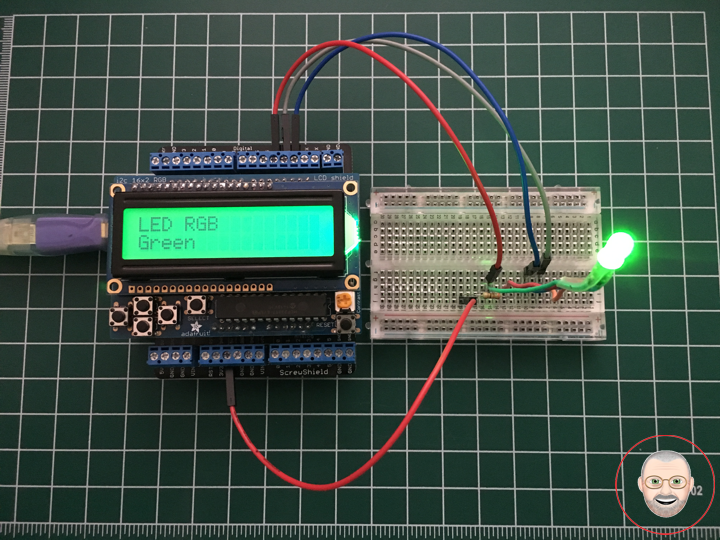
Project #7: RGB LCD Shield – LED RGB – Mk05

LED RGB

LED RGB are tri-color LEDs with red, green, and blue emitters, in general using a four-wire connection with one common lead (anode or cathode). These LEDs can have either common positive leads in the case of a common anode LED, or common negative leads in the case of a common cathode LED. Others, however, have only two leads (positive and negative) and have a built-in electronic control unit.

LED RGB (Red-Green-Blue) are actually three LEDs in one! But that doesn’t mean it can only make three colors. Because red, green, and blue are the additive primary colors, you can control the intensity of each to create every color of the rainbow. Most RGB LEDs have four pins: one for each color, and a common pin. On some, the common pin is the anode, and on others, it’s the cathode.

Circuit Schematics (Common Cathode)

The cathode will be connected to the VIN and will be connected through 330 Ohms resistor. We will use PWM for simulating analog output which will provide different voltage levels to the LEDs so we can get the desired colors. We will use PWM for simulating analog output which will provide different voltage levels to the LEDs so we can get the desired colors.

Source Code

I will use the pins number 4, 3 and 2 and I will name them iRed, iGreen and iBlue. In the setup section we need to define them as outputs. At the bottom of the sketch we have this custom made function named setColor() which takes 3 different arguments red, green and blue. These arguments represents the brightness of the LEDs or the duty cycle of the PWM signal which is created using the analogWrite() function. These values can vary from 0 to 255 which represents 100 % duty cycle of the PWM signal or maximum LED brightness.

So now in the loop function we will make our program which will change the color of the LED each 2 second. In order to get red light on the LED we will call the setColor() function and set value of 255 for the iRed argument and 0 for the two others. Respectively we can get the two other basic colors, green and blue.

DonLuc1807Mk09

1 x RGB LCD Shield 16×2 Character Display
1 x Arduino UNO – R3
1 x ProtoScrewShield
1 x LED RGB (NSTM515AS)
1 x 330 ohm resistor
4 x Jumper Wires 6″ M/M
1 x Half-Size Breadboard

Arduino UNO

Red – Digital 4
Gre – Digital 3
Blu – Digital 2
VIN – +5V

DonLuc1807Mk09p.ino

// ***** Don Luc *****
// Software Version Information
// Project #7: RGB LCD Shield – LED RGB – Mk05
// 7-9
// DonLuc1807Mk09p 7-9
// RGB LCD Shield
// LED RGB

// include the library code:
#include <Adafruit_MCP23017.h>
#include <Adafruit_RGBLCDShield.h>

Adafruit_RGBLCDShield RGBLCDShield = Adafruit_RGBLCDShield();
#define GREEN 0x2

// LED RGB
#define COMMON_ANODE
int iBlue = 2;
int iGreen = 3;
int iRed = 4;

void loop() 
{

  // LED RGB
  isColor();
   
  delay(500);
  
  // Clear
  RGBLCDShield.clear();
  
}

getColor.ino

// LED RGB
void isColor()
{

  // Display
  // Set the cursor to column 0, line 0  
  RGBLCDShield.setCursor(0,0);
  RGBLCDShield.print("LED RGB");          // LED RGB
  
  // Set the cursor to column 0, line 1
  RGBLCDShield.setCursor(0, 1); 
  RGBLCDShield.print("Red     ");         // Red
  setColor(255, 0, 0);                    // Red Color
  delay(2000);

  // Set the cursor to column 0, line 1
  RGBLCDShield.setCursor(0, 1); 
  RGBLCDShield.print("Green   ");         // Green
  setColor(0, 255, 0);                    // Green Color
  
  delay(2000);

  // Set the cursor to column 0, line 1
  RGBLCDShield.setCursor(0, 1); 
  RGBLCDShield.print("Blue   ");          // Blue
  setColor(0, 0, 255);                    // Blue Color
  delay(2000);
  
}

void setColor(int red, int green, int blue) 
{

  #ifdef COMMON_ANODE
    red = 255 - red;
    green = 255 - green;
    blue = 255 - blue;
  #endif

  analogWrite(iRed, red);
  analogWrite(iGreen, green);
  analogWrite(iBlue, blue);

}

setup.ino

// Setup
void setup() 
{

  // set up the LCD's number of columns and rows: 
  RGBLCDShield.begin(16, 2);
  RGBLCDShield.setBacklight(GREEN);
  
  // Display
  // Set the cursor to column 0, line 0  
  RGBLCDShield.setCursor(0,0);  
  RGBLCDShield.print("Don Luc");         // Don luc
  // Set the cursor to column 0, line 1
  RGBLCDShield.setCursor(0, 1);
  RGBLCDShield.print("LED RGB");         // LED RGB

  delay(5000);

  // Clear
  RGBLCDShield.clear();

  // LED RGB
  pinMode(iBlue, OUTPUT);                 // Blue
  pinMode(iGreen, OUTPUT);                // Green
  pinMode(iRed, OUTPUT);                  // Red

}

Don Luc
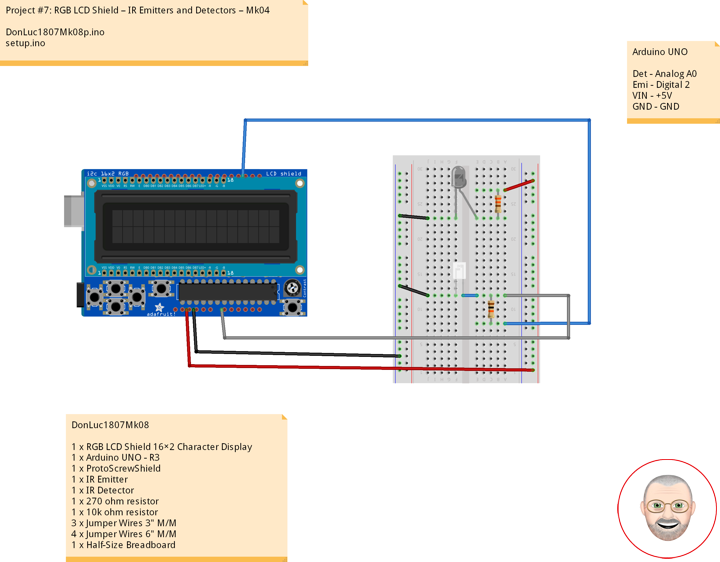
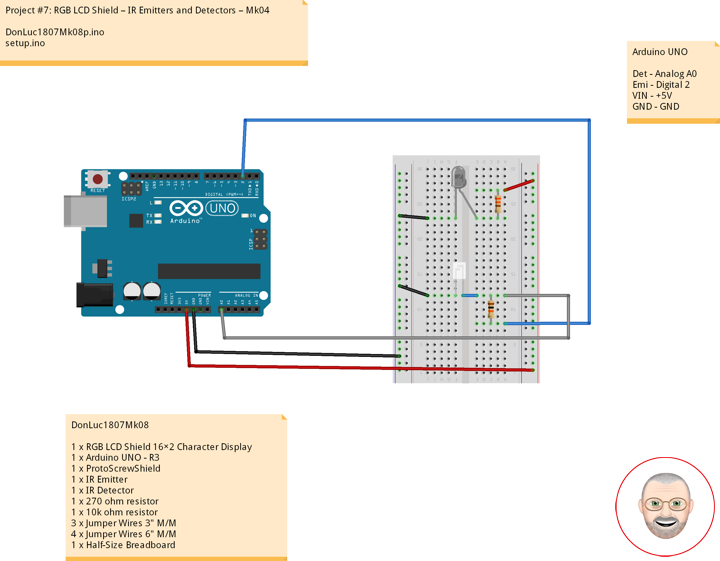
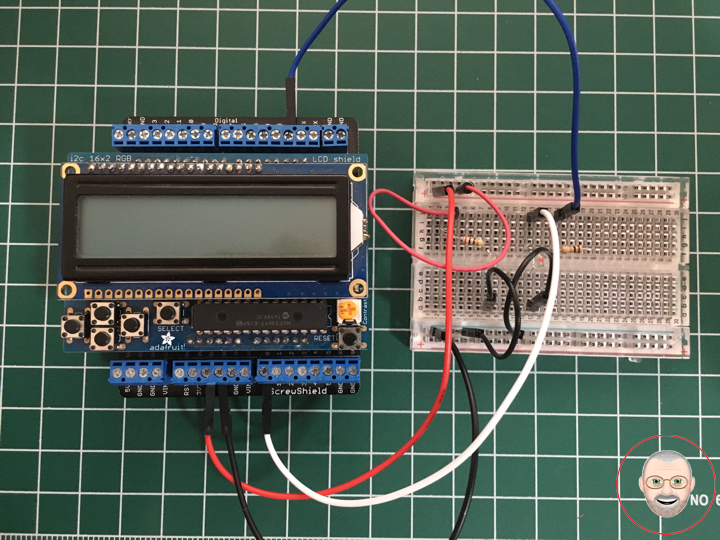
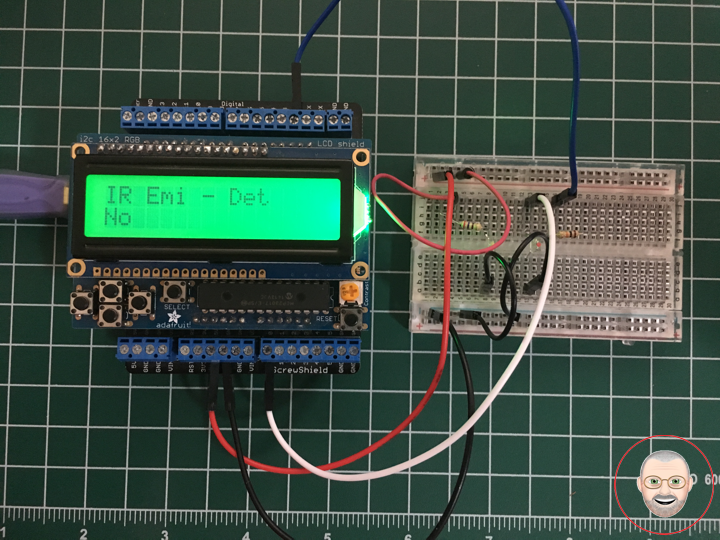
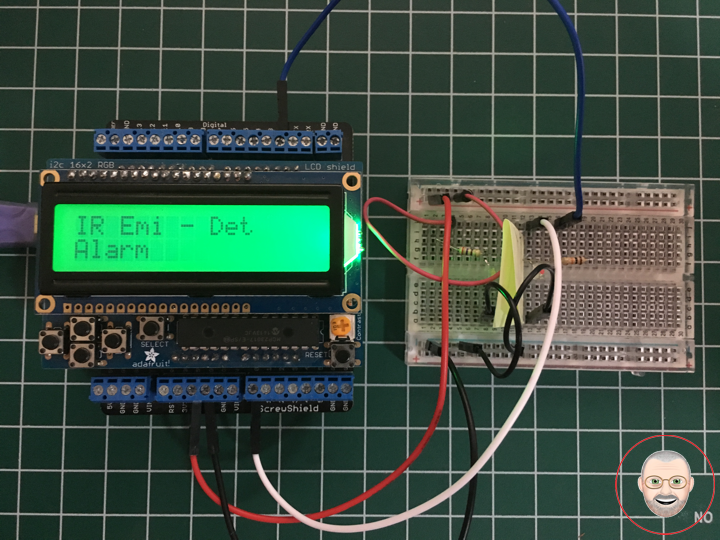
Project #7: RGB LCD Shield – IR Emitters and Detectors – Mk04

Infrared Emitters and Detectors

Side-looking Infrared Emitters and IR Detectors. These simple devices operate at 940nm and work well for generic IR systems including remote control and touch-less object sensing. Using a simple ADC on any microcontroller will allow variable readings to be collected from the detector. The emitter is driven up to 50mA with a current limiting resistor as with any LED device. The detect is a NPN transistor that is biased by incoming IR light.

Sold as a pair, with one Emitter and one Detector.

IR Emitter

Connect IR LED using a 270 ohm series resistor to the +5 supply (or to an Arduino pin if you want to switch the source on and off). Current draw is about 11 mA with a 270 ohm resistor. Current runs from anode to cathode. Flat on the case marks the cathode. To determine if the IR LED is the right way around.

IR Detector

A IR Detector is just like a regular transistor except the base lead is disabled or absent and light activates base current. The flat on the case marks the collector, the other lead is the emitter. Connect the collector to one end of a 10K ohm resistor and connect the other end of the resistor to a +5V supply (you can use the +5 pin on the Arduino). Connect the emitter to ground. The voltage should start out at +5V. When pointing the IR Detector, the voltage should drop down to near zero. To interface with the Arduino, make a second connection from the collector to an Arduino pin.

DonLuc1807Mk08

1 x RGB LCD Shield 16×2 Character Display
1 x Arduino UNO – R3
1 x ProtoScrewShield
1 x IR Emitter
1 x IR Detector
1 x 270 ohm resistor
1 x 10k ohm resistor
3 x Jumper Wires 3″ M/M
4 x Jumper Wires 6″ M/M
1 x Half-Size Breadboard

Arduino UNO

Det – Analog A0
Emi – Digital 2
VIN – +5V
GND – GND

DonLuc1807Mk08p.ino

// ***** Don Luc *****
// Software Version Information
// Project #7: RGB LCD Shield – IR Emitters and Detectors – Mk04
// 7-8
// DonLuc1807Mk08p 7-8
// RGB LCD Shield
// IR Emitters and Detectors

// include the library code:
#include <Adafruit_MCP23017.h>
#include <Adafruit_RGBLCDShield.h>

Adafruit_RGBLCDShield RGBLCDShield = Adafruit_RGBLCDShield();
#define GREEN 0x2

// IR Emitters and Detectors
int iDet = 2;
int iSense = A0;
int iVal;

void loop() 
{

  // Display
  // Set the cursor to column 0, line 0  
  RGBLCDShield.setCursor(0,0);
  RGBLCDShield.print("IR Emi - Det");     // IR Emitters and Detectors
  
  // IR Emitters and Detectors
  iVal = analogRead(iSense);
  
  // Set the cursor to column 0, line 1
  RGBLCDShield.setCursor(0, 1);
  if ( iVal >= 1005 ) 
  {
     RGBLCDShield.print("Alarm");         // Alarm    
  }
  else
  {
     RGBLCDShield.print("No");            // No
  }
  
  delay(1000);
  
  // Clear
  RGBLCDShield.clear();
  
}

setup.ino

// Setup
void setup() 
{

  // set up the LCD's number of columns and rows: 
  RGBLCDShield.begin(16, 2);
  RGBLCDShield.setBacklight(GREEN);
  
  // Display
  // Set the cursor to column 0, line 0  
  RGBLCDShield.setCursor(0,0);  
  RGBLCDShield.print("Don Luc");         // Don luc
  // Set the cursor to column 0, line 1
  RGBLCDShield.setCursor(0, 1);
  RGBLCDShield.print("IR Emi - Det");    // IR Emitters and Detectors

  delay(5000);

  // Clear
  RGBLCDShield.clear();

  // IR Emitters and Detectors
  pinMode(iDet, OUTPUT);
  pinMode(iSense, INPUT);
  digitalWrite(iDet,HIGH);

}

Don Luc
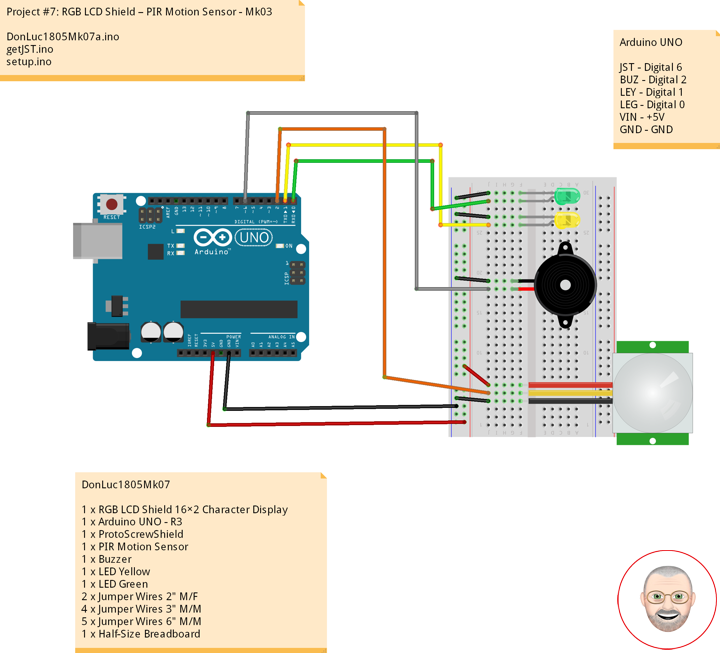
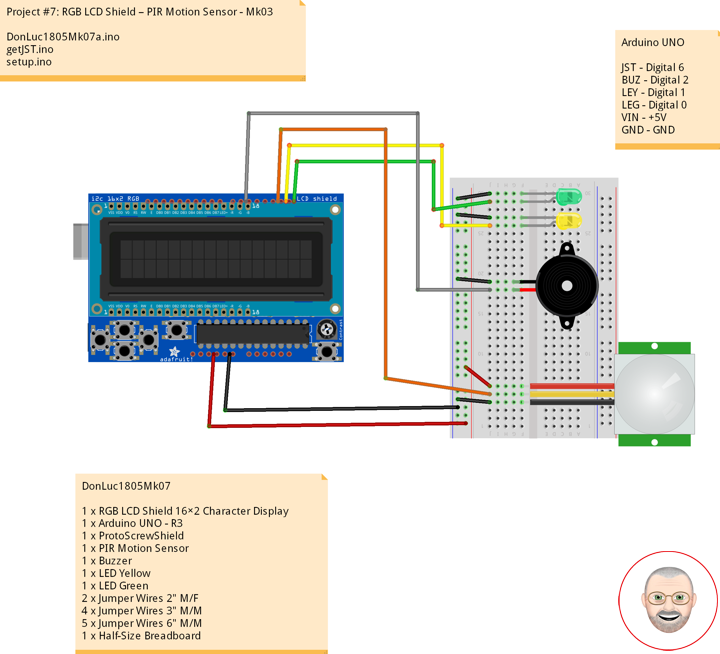
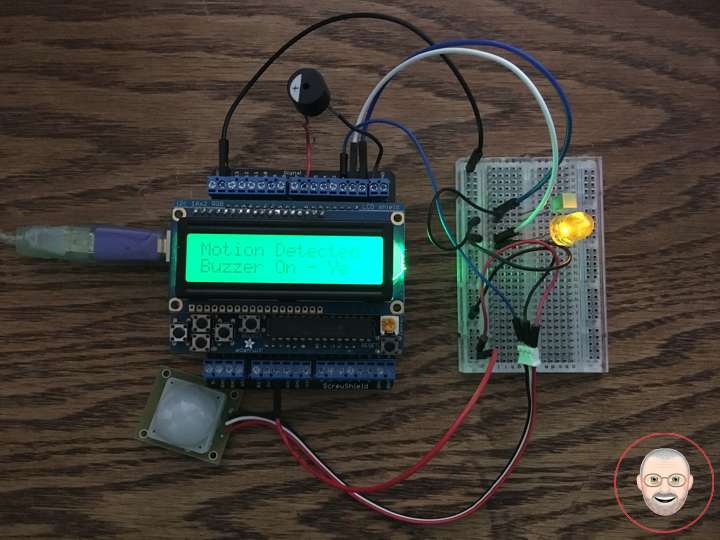
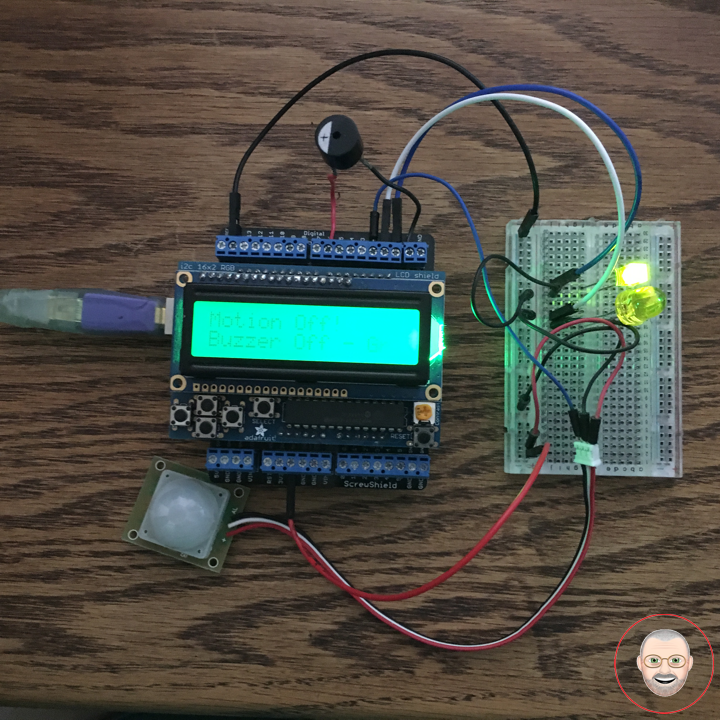
Project #7: RGB LCD Shield – PIR Motion Sensor – Mk03

PIR Motion Sensor

This is a simple to use motion sensor. Power it up and wait 1-2 seconds for the sensor to get a snapshot of the still room. If anything moves after that period, the ‘alarm’ pin will go low.

This unit works great from 5 to 12V (datasheet shows 12V). You can also install a jumper wire past the 5V regulator on board to make this unit work at 3.3V. Sensor uses 1.6mA@3.3V.

The alarm pin is an open collector meaning you will need a pull up resistor on the alarm pin. The open drain setup allows multiple motion sensors to be connected on a single input pin. If any of the motion sensors go off, the input pin will be pulled low.

We’ve finally updated the connector! Gone is the old “odd” connector, now you will find a common 3-pin JST! This makes the PIR Sensor much more accessible for whatever your project may need. Red = Power, White = Ground, and Black = Alarm.

Buzzer

This is a small 12mm round speaker that operates around the audible 2kHz range. You can use these speakers to create simple music or user interfaces.

This is not a true piezoelectric speaker but behaves similarly. Instead of a piezoelectric crystal that vibrates with an electric current, this tiny speaker uses an electromagnet to drive a thin metal sheet. That means you need to use some form of alternating current to get sound. The good news is that this speaker is tuned to respond best with a square wave (e.g. from a microcontroller).

LED

LED Yellow
LED Green

DonLuc1805Mk07

1 x RGB LCD Shield 16×2 Character Display
1 x Arduino UNO – R3
1 x ProtoScrewShield
1 x PIR Motion Sensor
1 x Buzzer
1 x LED Yellow
1 x LED Green
2 x Jumper Wires 2″ M/F
4 x Jumper Wires 3″ M/M
5 x Jumper Wires 6″ M/M
1 x Half-Size Breadboard

Arduino UNO

JST – Digital 6
BUZ – Digital 2
LEY – Digital 1
LEG – Digital 0
VIN – +5V
GND – GND

DonLuc1805Mk07a.ino

// ***** Don Luc *****
// Software Version Information
// Project #7: RGB LCD Shield – PIR Motion Sensor - Mk03
// 5-3.01
// DonLuc1804Mk07 5-3.01
// RGB LCD Shield
// PIR Motion Sensor (JST}

// include the library code:
#include <Adafruit_MCP23017.h>
#include <Adafruit_RGBLCDShield.h>

Adafruit_RGBLCDShield RGBLCDShield = Adafruit_RGBLCDShield();
#define GREEN 0x2

// PIR Motion Sensor (JST}
const int buz = 6;          // Buzzer
const int MOTION_PIN = 2;   // Pin connected to motion detector
const int LED_Yellow = 1;   // LED Yellow
const int LED_Green = 0;    // LED Green

void loop() {

  // PIR Motion Sensor (JST}
  isJST();

  delay(1000);
  
  // Clear
  RGBLCDShield.clear();
  
}

getJST.ino

void isJST(){
  
  int proximity = digitalRead(MOTION_PIN);   // PIR Motion Sensor
  
  if (proximity == LOW) // If the sensor's output goes low, motion is detected
  {

    // Motion Detected
    digitalWrite(buz, HIGH);         // Buzzer High
    digitalWrite(LED_Yellow, HIGH);  // LED Yellow High
    digitalWrite(LED_Green, LOW);    // LED Green Low
    
    // Display
    // Set the cursor to column 0, line 0  
    RGBLCDShield.setCursor(0,0);
    RGBLCDShield.print("Motion Detected!");   // Motion Detected!
    // Set the cursor to column 0, line 1
    RGBLCDShield.setCursor(0, 1);
    RGBLCDShield.print("Buzzer On - Yel");     // Buzzer On
   
  }
  else
  {

    // Motion Off
    digitalWrite(buz, LOW);         // Buzzer Low
    digitalWrite(LED_Yellow, LOW);  // LED Yellow Low
    digitalWrite(LED_Green, HIGH);  // LED Green High
    
    // Display
    // Set the cursor to column 0, line 0  
    RGBLCDShield.setCursor(0,0);
    RGBLCDShield.print("Motion Off!");        // Motion Off!
    // Set the cursor to column 0, line 1
    RGBLCDShield.setCursor(0, 1);
    RGBLCDShield.print("Buzzer Off - Gr");    // "Buzzer Off
          
  }
  
}

setup.ino

void setup() {

  // set up the LCD's number of columns and rows: 
  RGBLCDShield.begin(16, 2);
  RGBLCDShield.setBacklight(GREEN);
  
  // Display
  // Set the cursor to column 0, line 0  
  RGBLCDShield.setCursor(0,0);  
  RGBLCDShield.print("Don Luc");         // Don luc
  // Set the cursor to column 0, line 1
  RGBLCDShield.setCursor(0, 1);
  RGBLCDShield.print("Motion Sensor");   // Motion Sensor

  delay(5000);

  // Clear
  RGBLCDShield.clear();
  
  // PIR Motion Sensor (JST}
  pinMode(buz, OUTPUT);                // Buzzer
  pinMode(MOTION_PIN, INPUT_PULLUP);   // PIR Motion Sensor
  pinMode(LED_Yellow, OUTPUT);         // LED Yellow
  pinMode(LED_Green, OUTPUT);          // LED Green  
      
}

Don Luc

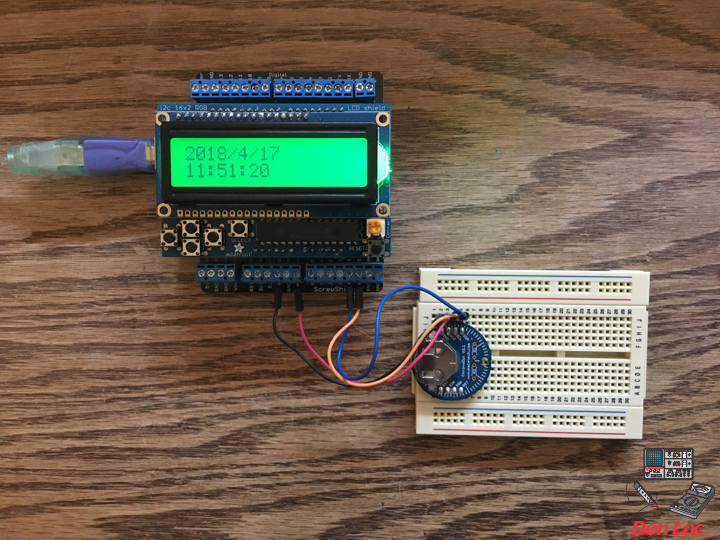
Project #7: RGB LCD Shield – Mk01

RGB LCD Shield
Project #7 – Mk01

ChronoDot

1 x RGB LCD Shield 16×2 Character Display
1 x Arduino Uno – R3
1 x ProtoScrewShield
1 x ChronoDot
4 x Jumper Wires 3″ M/M
1 x Half-Size Breadboard

A5
A4
GND
3.3V

DonLuc1804Mk07a.ino

// ***** Don Luc *****
// Software Version Information
// 1.03
// DonLuc1804Mk07 1.03
// RGB LCD Shield
// ChronoDot

// include the library code:
#include <Wire.h>
#include <Adafruit_MCP23017.h>
#include <Adafruit_RGBLCDShield.h>
#include <RTClib.h>
#include <RTC_DS3231.h>

RTC_DS3231 RTC;

#define SQW_FREQ DS3231_SQW_FREQ_1024     //0b00001000   1024Hz

Adafruit_RGBLCDShield RGBLCDShield = Adafruit_RGBLCDShield();

#define GREEN 0x2

// ChronoDot
char datastr[100];

void loop() {

  RGBLCDShield.clear();

  timeChrono();
   
  delay(2000);  

}

ChronoDot.ino

void setupChrono() {

  RTC.begin();
  
  DateTime now = RTC.now();
  DateTime compiled = DateTime(__DATE__, __TIME__);
  RTC.getControlRegisterData( datastr[0] );  
  
}

void timeChrono() {
 
    DateTime now = RTC.now();
    DateTime isNow (now.unixtime() + 6677 * 86400L + 42500);

    // set the cursor to column 0, line 0
    RGBLCDShield.setCursor(0,0);
    RGBLCDShield.print(isNow.year(), DEC);
    RGBLCDShield.print('/');
    RGBLCDShield.print(isNow.month(), DEC);
    RGBLCDShield.print('/');
    RGBLCDShield.print(isNow.day(), DEC);
    RGBLCDShield.print(' ');
    RGBLCDShield.print(' ');

    // set the cursor to column 0, line 1
    RGBLCDShield.setCursor(0, 1);
    RGBLCDShield.print(isNow.hour(), DEC);
    RGBLCDShield.print(':');
    RGBLCDShield.print(isNow.minute(), DEC);
    RGBLCDShield.print(':');
    RGBLCDShield.print(isNow.second(), DEC);
    RGBLCDShield.print(' ');
    RGBLCDShield.print(' ');
    
}

setup.ino

void setup() {

  // set up the LCD's number of columns and rows: 
  RGBLCDShield.begin(16, 2);

  RGBLCDShield.print("Don Luc");
  RGBLCDShield.setBacklight(GREEN);
   // set the cursor to column 0, line 1
  RGBLCDShield.setCursor(0, 1);
  // print the number of seconds since reset:
  RGBLCDShield.print("ChronoDot"); 

  delay(5000);

  // ChronoDot
  setupChrono();
  
  delay(1500); //wait for the sensor to be ready 
  
}

Don Luc

Project #6: MicroView – Mk04

MicroView
Project #6 – Mk04

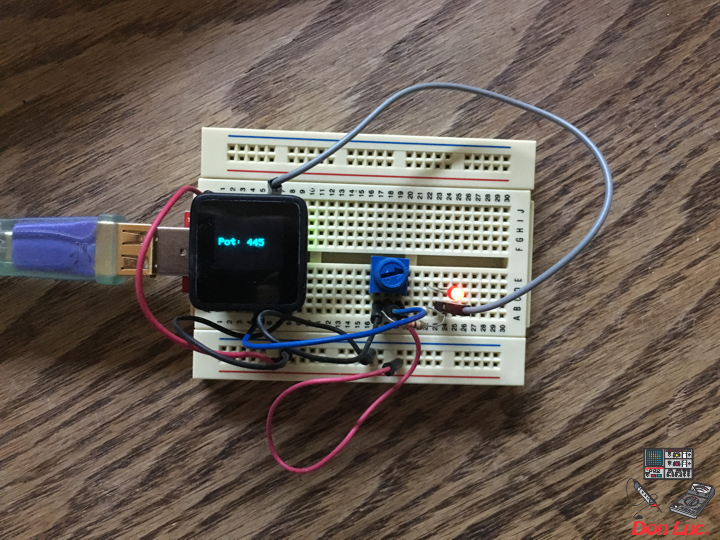
Trimpot – LED

1 x MicroView
1 x MicroView – USB Programmer
1 X Trimpot 10K with Knob
1 X Resistor 2.55k Ohm
1 X 3MM Low Current Red LED
6 x Jumper Wires 3″ M/M
1 x Half-Size Breadboard

05 pin – A2
08 pin – GND
11 pin – 2
15 pin – +5V

DonLuc1804Mk06d.ino

// ***** Don Luc *****
// Software Version Information
// 3.01
// DonLuc1804Mk06 4.04
// MicroView
// Trimpot - LED

// include the library code:
#include <MicroView.h>

// Potentiometer
int potPin = A2;    // select the input pin for the potentiometer
int ledPin = 2;   // select the pin for the LED
int potPot = 0;
String cap = "";

void loop() {

  // Potentiometer
  isCap();

  delay(500);
  uView.clear(PAGE);
  
}

getPot.ino

void isCap(){

    potPot = analogRead(potPin);    // read the value from the sensor
    cap = "Pot: ";
    cap.concat(potPot);
    
    uView.setFontType(0);
    uView.setCursor(0,20);
    uView.print( cap );
    uView.display();
    
}

setup.ino

void setup() {

  uView.begin();       // begin of MicroView
  uView.clear(ALL);    // erase hardware memory inside the OLED controller
  uView.display();     // display the content in the buffer memory, by default it is the MicroView logo
  delay(1000);
  uView.clear(PAGE);   // erase the memory buffer, when next uView.display() is called, the OLED will be cleared.

  uView.setFontType(1);
  uView.setCursor(0,20);
  uView.print("Don Luc");
  uView.display();
  delay(5000);

  uView.clear(PAGE);   // erase the memory buffer, when next uView.display() is called, the OLED will be cleared.

  uView.setFontType(0);
  uView.setCursor(0,20);
  uView.print("TrimpotLED");
  uView.display();
  delay(5000);
  
  uView.clear(PAGE);

  // ledPin
  pinMode(ledPin, OUTPUT);
  digitalWrite(ledPin, HIGH);  // turn the ledPin on

}

Don Luc

Project #6: MicroView – Mk03

MicroView
Project #6 – Mk03

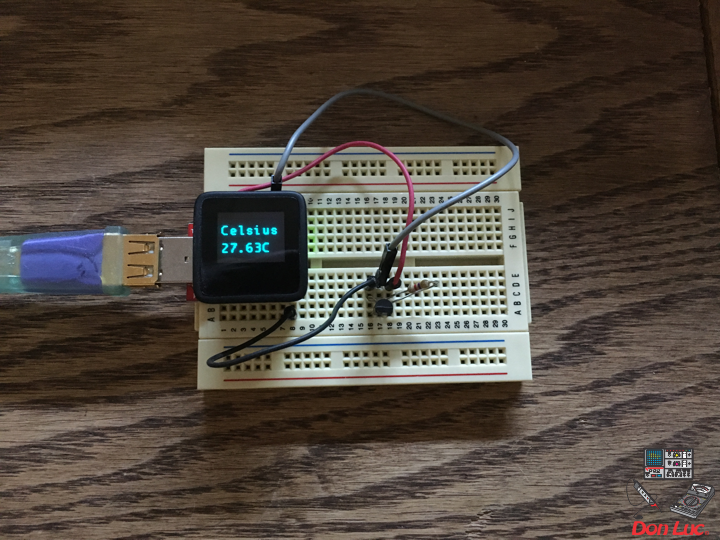
1 x MicroView
1 x DS18S20
1 x Resistor 1.65k Ohm
3 x Jumper Wires 3″ M/M

08 pin – GND
11 pim – 2
15 pin – +5V

DonLuc1804Mk05b.ino

// ***** Don Luc *****
// Software Version Information
// 3.01
// DonLuc1804Mk05 3.01
// MicroView
// OneWire
// DS18S20

#include <MicroView.h>
#include <OneWire.h>
// Temperature chip i/o
int DS18S20_Pin = 2; //DS18S20 Signal pin on digital 2
OneWire ds(DS18S20_Pin);  // on digital pin 2
float temperature = 0;
String tempZ = "";

void loop() {

  // Temperature chip i/o
  temperatu();
  isTe();
      
	uView.setFontType(1);
	uView.setCursor(0,20);
	uView.print("Don Luc");
	uView.display();
	delay(1000);
  
	uView.clear(PAGE);
	
}

getTemperature.ino

float getTemp() {
  
  //returns the temperature from one DS18S20 in DEG Celsius
  byte data[12];
  byte addr[8];
 
  if ( !ds.search(addr)) {
      //no more sensors on chain, reset search
      ds.reset_search();
      return -1001;
  }
 
  if ( OneWire::crc8( addr, 7) != addr[7]) {
      return -1002;
  }
 
  if ( addr[0] != 0x10 && addr[0] != 0x28) {
      return -1003;
  }
 
  ds.reset();
  ds.select(addr);
  ds.write(0x44,1); // start conversion, with parasite power on at the end
 
  byte present = ds.reset();
  ds.select(addr);    
  ds.write(0xBE); // Read Scratchpad
 
  
  for (int i = 0; i < 9; i++) { // we need 9 bytes
    data[i] = ds.read();
  }
  
  ds.reset_search();
  
  byte MSB = data[1];
  byte LSB = data[0];
 
  float tempRead = ((MSB << 8) | LSB); //using two's compliment
  float TemperatureSum = tempRead / 16;
  
  return TemperatureSum;
 
}
 
void temperatu(){
  
  temperature = getTemp();
 
}
 
void isTe() {

  tempZ = "";
  uView.setFontType(1);
  uView.setCursor(0,10);
  uView.print("Celsius");
  uView.setCursor(0,30);  
  tempZ.concat(temperature);
  tempZ.concat("C");
  uView.print( tempZ );
  uView.display();
  delay(5000);

  uView.clear(PAGE);
  
}

setup.ino

void setup() {
  
  uView.begin();       // begin of MicroView
  uView.clear(ALL);    // erase hardware memory inside the OLED controller
  uView.display();     // display the content in the buffer memory, by default it is the MicroView logo
  delay(1000);
  uView.clear(PAGE);   // erase the memory buffer, when next uView.display() is called, the OLED will be cleared.

  uView.setFontType(1);
  uView.setCursor(0,20);
  uView.print("Don Luc");
  uView.display();
  delay(5000);

  uView.clear(PAGE);   // erase the memory buffer, when next uView.display() is called, the OLED will be cleared.

  uView.setFontType(1);
  uView.setCursor(0,20);
  uView.print("OneWire");
  uView.display();
  delay(5000);
  
  uView.clear(PAGE); 

  uView.setFontType(1);
  uView.setCursor(0,20);
  uView.print("DS18S20");
  uView.display();
  delay(5000);
  
  uView.clear(PAGE);
   
}

Don Luc